SmartCast - USB Screen Share
- 0.0
- Rating
- 500.00K
- Installs
- Free
- Price
 Analysis by App-foxy
When I want to show something from my phone on a larger screen, the difficult part is often not the video or photo itself; it is getting the connection to work without rearranging the whole room. SmartCast, listed as USB Screen Share and developed by SwiftBiz Apps, aims to make that moment simpler by focusing on screen sharing through a cable or a wireless connection. After spending time with this Personalization app, my view is fairly clear: it is most useful as a practical screen-sharing helper for casual situations, especially when I do not want to depend on a separate Wi-Fi network.
I would not treat it as a universal replacement for every casting method. Its appeal is narrower and more useful than that. If your main problem is connecting a phone to a television when the available network is unreliable, the app is worth trying. If you already have a dependable built-in casting system, a streaming device, or a television with excellent manufacturer support, SmartCast may add another step rather than remove one.
What SmartCast does well in everyday use
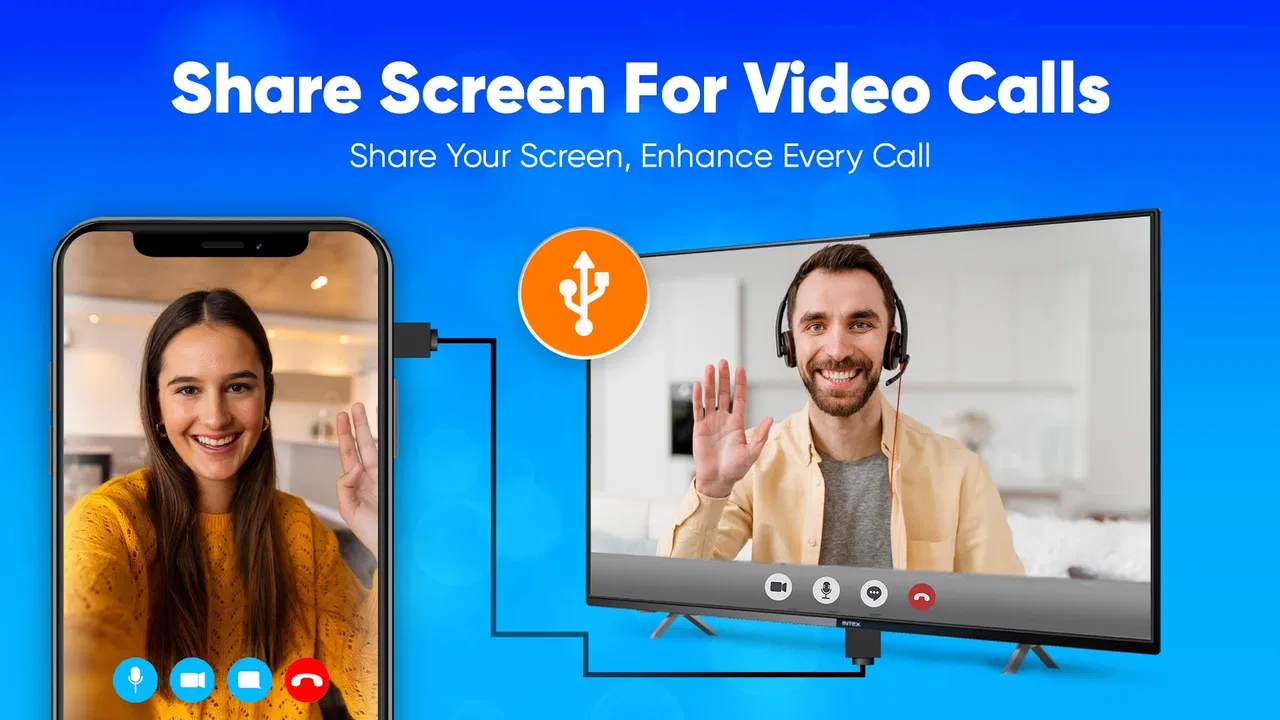
The app’s central idea is easy to understand. It lets you share what is on your phone’s display with a TV using USB or wirelessly, with the added promise of working without Wi-Fi. That last point matters in real homes, hotel rooms, classrooms, and temporary spaces where the television may be available but the network is restricted, crowded, or simply absent.
You May Also Like

 Blood Strike: 2.5 Anniversary
Blood Strike’s Loadouts Turn Every Drop Into a Tactical Gamble
A close look at Blood Strike’s custom loadouts: how fast access to signature weapons reshapes its battle royale rhythm, rewards preparation, and narrows the gap between fights.

 Pandora - Music & Podcasts
Pandora’s Music Is Easy to Start, but Harder to Recover
Pandora’s strength is its low-effort path from a seed to a station. Its weak spot is how much confidence it asks you to place in connection, setup, and quiet recovery.

 8 Ball Pool
 Is Built on Rivalries, Rematches, and Routine
A close look at the rivalries, rematches, shared routines, and unanswered safety questions that turn a quick pool match into a persistent mobile community.

 Samsung Music
’s Quiet Strength Is Playing What You Already Own
Its reach comes less from spectacle than from dependable access to a personal library. That simplicity is both the app’s strongest retention engine and its ceiling.

 AccuWeather: Weather Radar
AccuWeather Review: A Quick, Clear Forecast for Everyday Decisions
For everyday plans, the best forecast is the one you can understand quickly. AccuWeather makes rain timing, radar, and local conditions easy to act on, with a few trade-offs.

 Hill Climb Racing
Why Hill Climb Racing Still Turns Crashes Into One More Run
A tiny car, a bumpy hill and one more upgrade: Hill Climb Racing keeps resurfacing because its simple chaos makes every near-miss feel personal.
More From Our News Desk



In my experience, the most valuable part is not the word “wireless” by itself. Many phones and televisions already offer some form of wireless casting. The useful distinction is having another route when the normal route fails. A wired connection can be more dependable for a quick presentation, a family photo session, or showing a document on a larger screen. It also avoids the familiar problem of placing both devices on the same network and then discovering that guest-network isolation prevents them from seeing each other.
The interface is best approached as a utility rather than an entertainment hub. I found it more convincing when used for a specific task: open the app, choose the connection approach that fits the situation, establish the link, and then leave it alone while the phone display is visible on the television. That focused role keeps the experience easier to understand than apps that combine casting with media libraries, remote controls, subscriptions, and unrelated recommendations.
There is also a practical advantage in using screen sharing rather than transferring individual files. I can show a webpage, a slide, a map, a messaging conversation, or a photo album without first exporting it into a supported format. That flexibility is particularly handy when I am helping someone troubleshoot a phone or explaining a setting to a person sitting across the room.
SmartCast is free to download, and its content rating is Everyone, which makes the basic proposition approachable for households with different users. The app is currently at version 1.0.7 and supports devices running Android 8.0 or later. Those details are important for older phones: before planning a presentation or trip around it, I would check the Android version rather than assuming that any Android handset can use it.
Why the USB option changes the decision
A cable is not automatically more convenient than wireless sharing, but it can be the better choice when consistency matters. Wireless casting depends on several things being cooperative at once: the phone, the television, the network environment, and the particular casting standard each device understands. USB sharing can reduce some of that uncertainty, although it introduces its own dependence on compatible hardware and the correct cable or adapter.
My advice is to think of the wired mode as a backup plan, not merely a slower version of wireless casting. If I were preparing to show a set of photos at a family gathering, I would test the cable and television beforehand, keep the phone charged, and disable distractions before connecting. That preparation is more valuable than assuming the first connection will always be perfect.
There is a less obvious benefit to this approach: a wired setup can be easier to explain to another person. “Connect the phone, open the app, and follow the on-screen connection steps” is often more manageable than explaining network names, pairing prompts, and device discovery. For relatives who are uncomfortable with smart-TV menus, that reduction in choices can make the whole task less intimidating.
Still, a cable can make the phone less comfortable to use. The handset may need to remain near the television, and the cable can get in the way if someone wants to browse while the screen is being shared. This is a genuine trade-off. The wired option is strongest when the phone is acting as a source for a defined activity, not when I want to roam around the room with it.
Useful scenarios beyond watching videos
The obvious use case is showing a video or photo on a larger display, but I think SmartCast makes more sense when the material is not already available through a TV app. For example, I could pull up a travel itinerary, demonstrate a recipe, compare products in a browser, or show a digital invitation to several people at once. The app turns the phone into a temporary presentation source instead of forcing me to find a separate television version of every service.
A realistic evening scenario would be helping a family member understand a confusing phone setting. Rather than passing the handset back and forth, I could share the display to the television and guide the person through each menu while everyone can see the same screen. That is a small task, but it highlights why screen mirroring remains useful even when no movie is involved.
Another good fit is a short presentation in a place where I do not control the network. I would prepare the images or documents on the phone, test the connection with the available television, and use the app as the bridge. The important workflow insight is to keep the source material local whenever possible. Relying on a webpage that may need a weak connection during the presentation defeats much of the advantage of avoiding Wi-Fi.
For gaming, my recommendation is more cautious. Mirroring a game can be enjoyable for showing progress or letting others watch, but the phone’s controls remain the main input, and any delay between the handset and television can affect timing. I would use it for turn-based games, demonstrations, or casual viewing rather than competitive play where immediate response is essential.
The friction I would want users to understand first
The phrase “no Wi-Fi needed” should not be read as “no compatibility questions.” Screen sharing still depends on the phone and television being able to communicate through the chosen method. A USB connection may require a suitable cable, adapter, or television input, while wireless sharing can depend on what the receiving display supports. SmartCast can make the process more accessible, but it cannot remove the physical and software limits of the devices involved.
This is the main weakness I noticed in the product’s overall proposition: the app can simplify the front door, but the room behind that door is still made of different phones, TVs, ports, and connection standards. A first-time user may expect a single tap to solve everything. In practice, I would treat the first connection as setup time and avoid waiting until guests are already watching.
Privacy also deserves sensible attention whenever a phone screen is mirrored. Everything visible on the display may become visible on the television, including incoming notifications, open conversations, account details, or other private material. Before sharing, I would turn on a suitable notification mode, close sensitive apps, and open the exact content I intend to show. This is not a criticism unique to SmartCast; it is an important habit for this particular kind of tool.
Battery use is another practical consideration. Keeping the screen active while transmitting or maintaining a connection can be more demanding than ordinary browsing. For a short photo session that may not matter, but for a long presentation or extended viewing period I would start with a good charge and keep a power source nearby. With a wired arrangement, I would also check whether the chosen setup allows the phone to charge at the same time, rather than assuming that every adapter handles both tasks.
The app includes in-app purchases ranging from $4.99 to $14.99 per item. That makes it important to decide whether the free experience already covers your normal use before paying for anything. I would not purchase simply because a connection failed once; I would first check the cable, input selection, phone compatibility, and television settings. A paid option cannot compensate for a physical connection that the devices do not support.
How it compares with built-in casting and other alternatives
Modern Android phones and smart televisions often include their own screen-sharing tools. When those built-in options recognize each other immediately, they are usually the cleanest choice because they require no additional app and may integrate better with the television’s controls. A dedicated streaming device can also be preferable for frequent video viewing, especially when the service has a native TV application and I want the phone to act only as a remote.
SmartCast earns its place when those usual alternatives are inconvenient. Its combination of USB and wireless approaches gives me a fallback when native discovery is inconsistent or when I am working outside my home network. It is also more appealing for displaying content that does not have a television app. In that situation, the value is not superior picture quality or a richer media catalog; it is the ability to put the phone’s general display on a larger screen.
There is a trade-off compared with sending a video directly from a streaming service. Direct playback on the television is often more efficient because the TV or streaming device handles the video itself, while screen mirroring keeps the phone involved. That can mean more battery use and less freedom to use the handset for something else. For long movie sessions, I would usually choose native TV playback when available. For a quick, mixed collection of phone content, SmartCast is more flexible.
Compared with a simple physical adapter used without an app, SmartCast offers a guided software layer and the convenience of handling more than one connection style. The adapter-only approach may be preferable for people who want the shortest possible chain between phone and display, but it can also require knowing exactly which accessory and port standard to buy. SmartCast is better suited to someone who wants help organizing the connection process, provided the underlying hardware is compatible.
Who should use it, and who should skip it
I would recommend SmartCast to people who regularly need to show phone content to a group but do not always have a reliable network. It is a sensible option for families sharing photos, students presenting material from a handset, travelers using unfamiliar televisions, and anyone who wants a backup when ordinary casting refuses to discover the display.
It is also a good match for users who prefer a practical tool over a complicated media platform. The free entry point makes it easy to test the workflow before deciding whether it belongs in a regular routine. Since SwiftBiz Apps has placed it in the Personalization category, I see it less as a replacement for a streaming service and more as a way to adapt the phone’s display to the screen already in front of me.
I would skip it if my only goal is watching subscription video on a television that already has the relevant apps. In that case, using the TV’s own application is likely to be simpler and less dependent on keeping the phone awake. I would also look elsewhere if I need professional presentation reliability, advanced controls, recording, or precise management of multiple sources. SmartCast is designed around straightforward sharing, not a full production setup.
Users with older Android phones should pay attention to the minimum operating-system requirement of Android 8.0. People with newer phones should still test their particular television and cable combination, especially before an important event. The app can be a useful connector, but the best experience comes from treating compatibility as part of the setup rather than as an afterthought.
My verdict after using it
SmartCast is most convincing as a flexible backup for everyday screen sharing, not as a universal casting solution. Its strongest idea is giving users both a USB route and a wireless route, with the possibility of working without Wi-Fi when the normal home-network method is unavailable. That makes it genuinely useful in temporary spaces and for quick demonstrations involving content that lives on the phone.
The limitations are equally clear. A cable, adapter, television input, or device standard can still determine whether the connection succeeds. Wireless sharing may still involve compatibility steps, and extended mirroring can be less convenient than direct playback through a TV app. I would prepare the content, protect private notifications, charge the phone, and test the exact display before relying on it in front of other people.
With over 500 thousand installs, the app has found a meaningful audience, and its free availability makes experimentation straightforward. I would recommend giving it a try if your current casting method is unreliable or if you often need to show miscellaneous phone content on a larger screen. For someone already satisfied with built-in casting or a dedicated streaming device, it is more of a useful contingency plan than an essential download.
FAQs for SmartCast - USB Screen Share
01What is SmartCast - USB Screen Share used for?
SmartCast - USB Screen Share is an application designed to facilitate screen sharing between devices using a USB connection. This app is particularly useful for presentations, gaming, or displaying your phone's content on a larger screen without relying on Wi-Fi or Bluetooth, ensuring a stable and fast connection.
02Is SmartCast compatible with my device?
SmartCast - USB Screen Share is compatible with most Android and iOS devices that support USB OTG (On-The-Go) functionality. To ensure compatibility, check if your device supports OTG in the settings or consult your device’s manual. Additionally, ensure your operating system is updated to avoid any compatibility issues.
03How do I set up SmartCast - USB Screen Share?
Setting up SmartCast is straightforward. First, download and install the app on your device. Connect your device to a PC or supported display using a USB cable. Follow the on-screen instructions within the app to establish a connection. Ensure that the necessary drivers are installed on your PC for seamless operation.
04Does SmartCast affect my device's performance or battery life?
Using SmartCast - USB Screen Share may impact your device’s performance and battery life due to the resource-intensive nature of screen sharing. It is advisable to keep the device connected to a power source during extended use to prevent rapid battery drain. Additionally, close unnecessary apps to optimize performance.
05Is there a cost associated with using SmartCast - USB Screen Share?
SmartCast - USB Screen Share is available as a free download with basic features. However, it may offer in-app purchases or a premium version that unlocks additional functionalities, such as higher resolution support or ad-free usage. Check the app store listing for the latest pricing and feature updates.
Pros
- Easy setup process for quick screen sharing.
- Supports multiple devices seamlessly.
- High-quality streaming with minimal lag.
- User-friendly interface with intuitive controls.
- Compatible with both Android and iOS platforms.
Cons
- Requires stable Wi-Fi for optimal performance.
- Limited customization options for screen layout.
- Occasional connectivity issues with older devices.
- Ads can be intrusive during use.
- Premium features locked behind paywall.

SmartCast - USB Screen Share
Gallery